Redoing My Dotfiles: From Fish to Zsh and Mastering Tmux
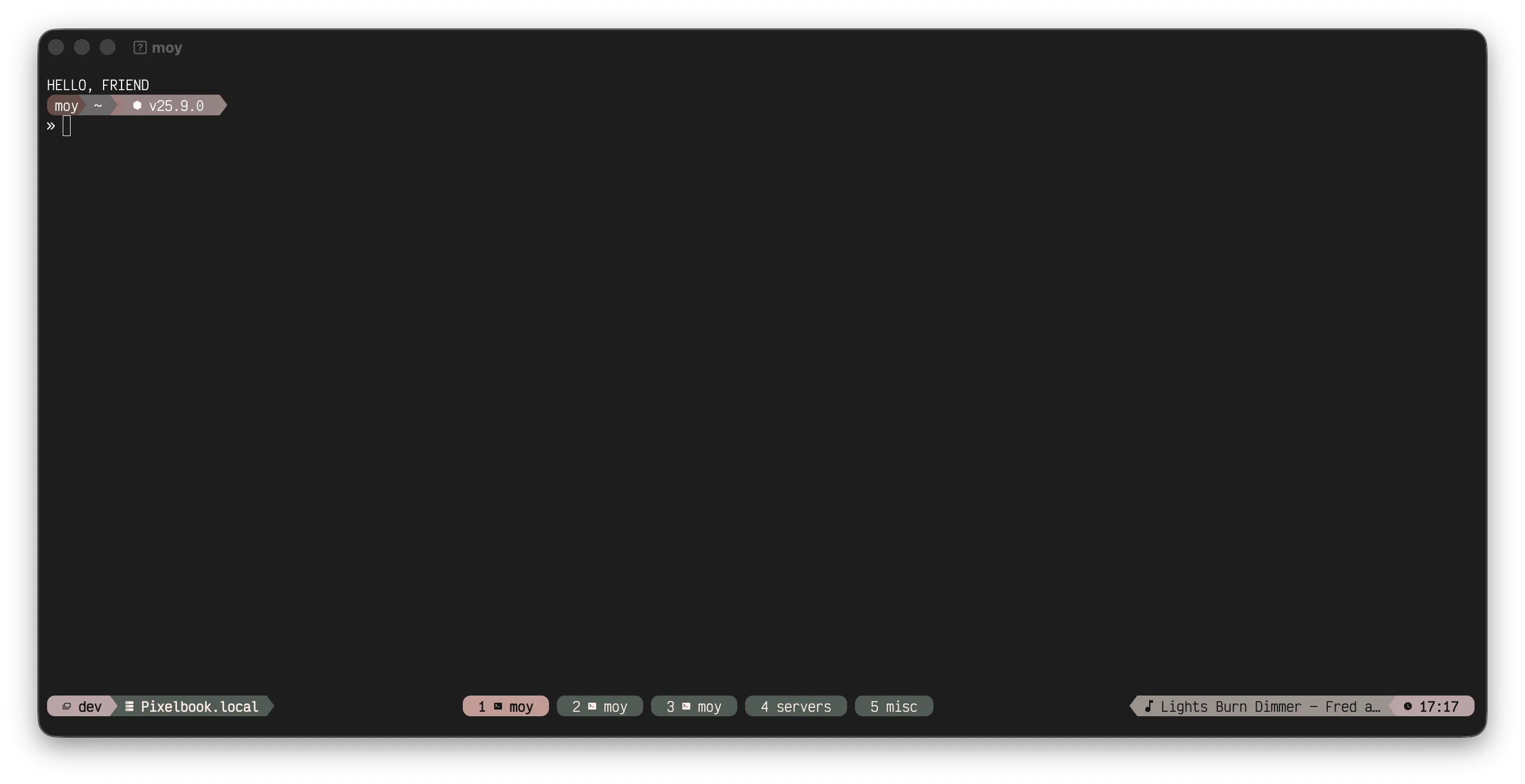
For a long time, I was happily riding the Fish shell train. It was fast, the defaults were incredibly sensible, and the autosuggestions were life-changing. But recently, I found myself yearning for the raw compatibility and ecosystem that Zsh offers, especially as I integrate more advanced tooling into my workflow.
Over the past week, I ripped off the band-aid and completely redid my dotfiles. The main goals? Switching back to Zsh and finally getting a Tmux setup that doesn’t just work, but actively enhances my productivity—specifically when jumping between multiple “dev-sessions” and CLI-based AI agents.
The Return to Zsh
Fish is fantastic, but POSIX compliance is a real hurdle when you’re moving fast. As I started leaning more heavily on complex scripts and modern development environments (like AI coding assistants and CLI agents), the friction of translating bash/zsh installation scripts and commands into Fish was starting to add up.
I decided to migrate back to Zsh, but this time, I wanted to do it right. No bloated, sluggish frameworks. I set up sheldon as my plugin manager and embraced zsh-patina to keep my environment clean and incredibly fast. It feels just as snappy as Fish, but with none of the compatibility headaches. I also integrated the ghostty terminal emulator, and the combination is lightning fast.
Mastering Tmux for AI “Dev-Sessions”
The most significant upgrade in this rewrite, however, was my Tmux configuration. I’ve always used Tmux for basic session persistence, but I wanted a setup specifically tailored for modern development—which, for me, involves running multiple AI agents concurrently.
Here are the key changes I made to my Tmux workflow:
- The Prefix Rebind: I initially experimented with remaping my prefix to
ctrl-space, but ultimately settled onctrl-a. It just feels more natural and is easier to hit when you’re flying across the keyboard between panes. - Workflow & Alerts: I added audible alerts and improved the dev workflow integration. Now, when a long-running task or an AI agent finishes its job in a background pane, Tmux actively lets me know.
- Theming with Hellwal: I integrated
hellwalto dynamically theme my Tmux cache and sessions, keeping the aesthetics cohesive across my entire environment.
With this setup, I can spin up a dedicated “dev-session” for a project: one window running my local server, another open in my editor, and a dedicated pane running a tool like Gemini CLI. Jumping between these contexts is completely frictionless. It finally feels like I have a terminal environment tailored exactly to how I think and work.
What’s Next?
The journey of tweaking your environment never truly ends. But for the first time in a while, I feel like my tools are getting out of my way rather than dictating how I work. If you’re struggling to wrangle multiple AI agents in a single terminal window, I highly recommend investing a weekend into your Tmux setup!